The SERV app just got even better with awesome new features like phone number editing, route view upgrades, fresh payment options, and smarter invoicing, email, and SMS tools. Ready to check it out? Let’s dive in!
Highlight & Confirm New Subscriptions in Route View
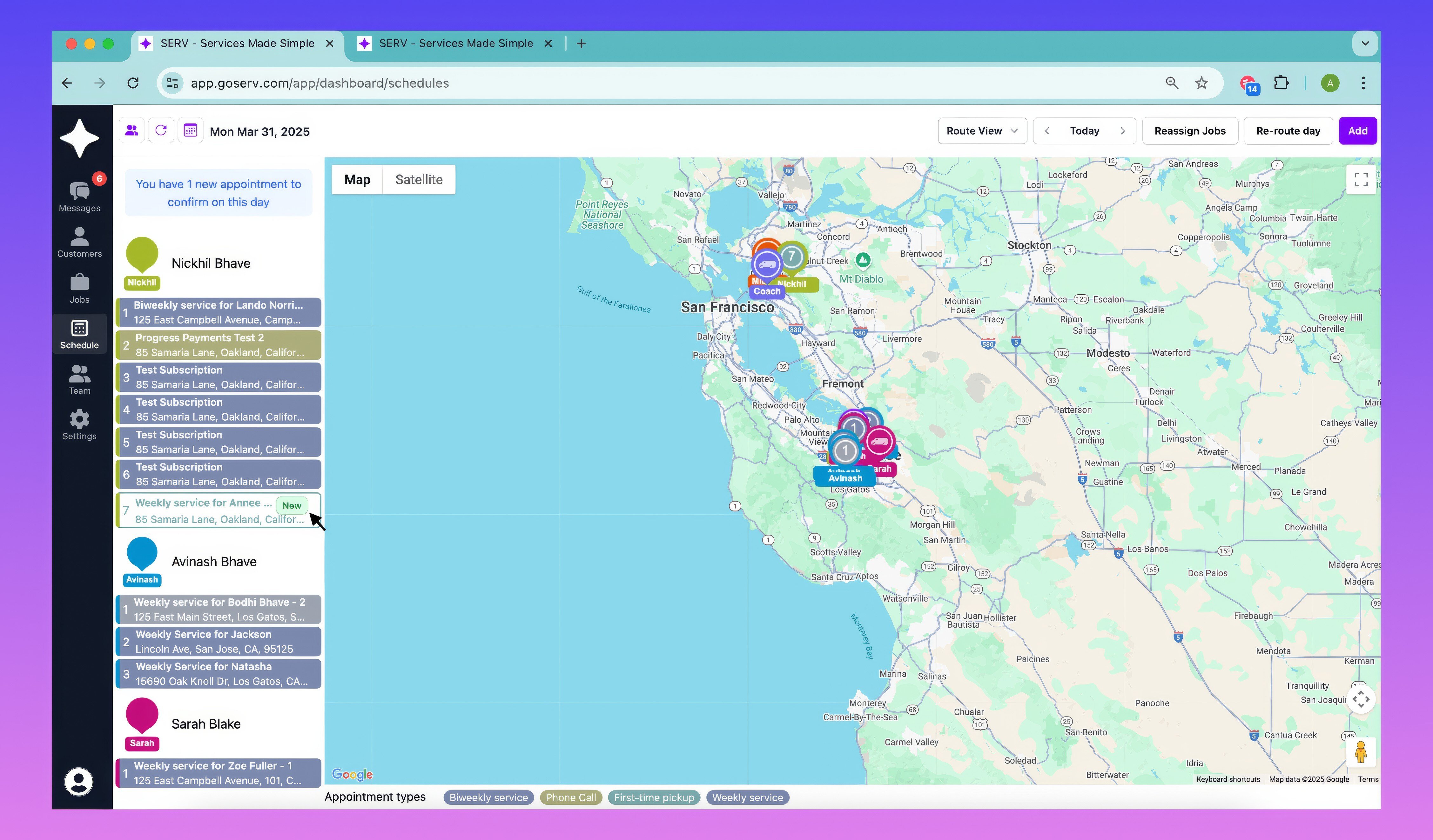
New subscription jobs are now clearly marked in the Route View for easy tracking and confirmation.
Key Updates:
- Visual Indicators:
- New subscription appointments have a distinct highlight.
- A "New" icon signals pending confirmation.
- Job Confirmation Actions:
- A "Confirm" button finalizes the appointment.
- A "Reschedule" option allows easy modifications.
- New Job Alert Card:
- Displays the number of unconfirmed appointments at the top of the Route View.
- Disappears once all appointments are confirmed.
Steps To Use:
- Go to Schedule and select Route View.
- New appointments will be displayed with a “New” icon
- To easily confirm the appointment for that day, you can click on the appointment tile and click the “confirm” button or reschedule the appointment to a new day of service.
Allow Phone Numbers to Be Edited
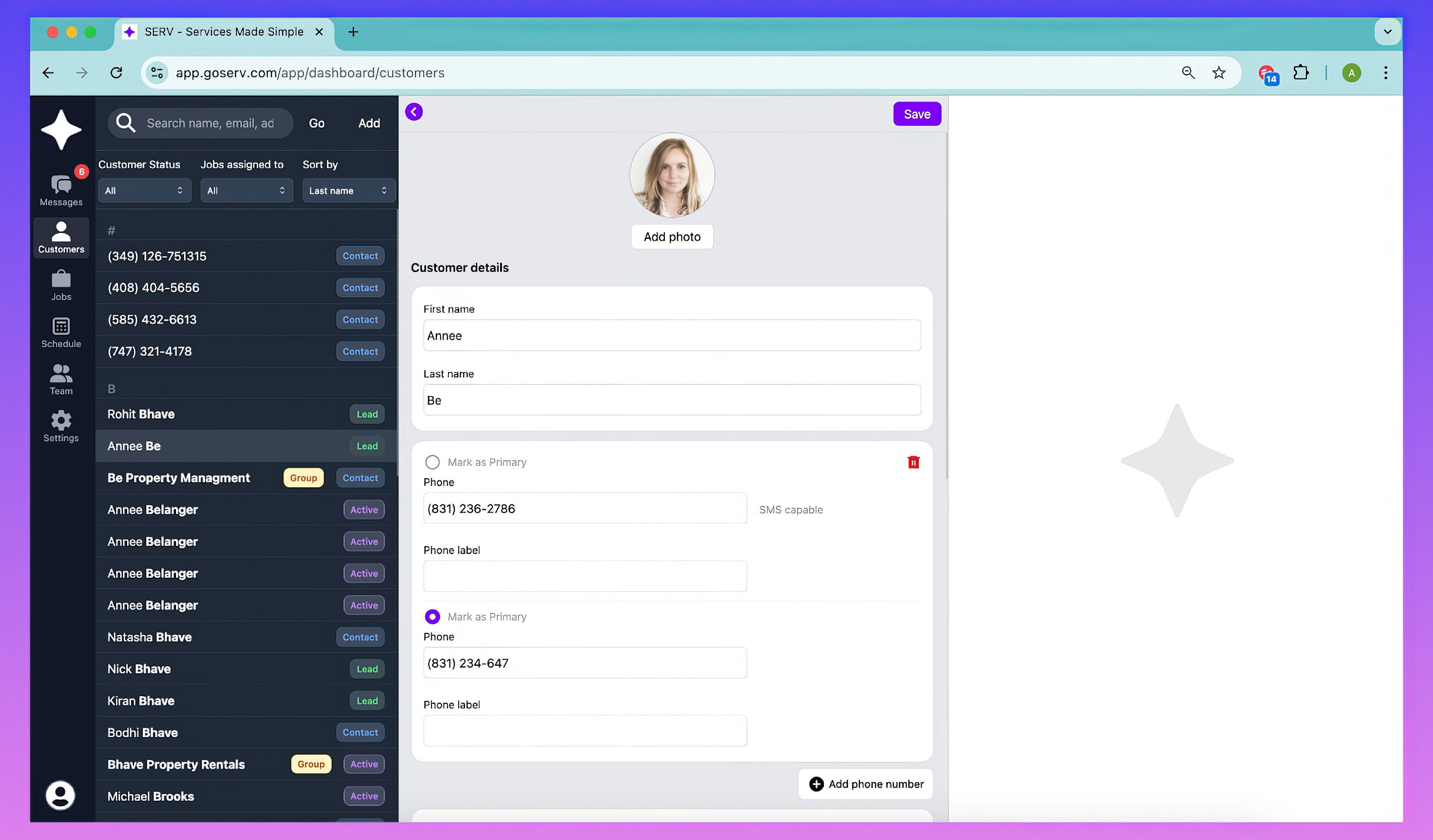
Admins and Owners can now update a customer’s phone number, ensuring accurate records and continued service operations. Editing a phone number will delete any historical messages between your business and the phone number you edit so please be aware before editing phone numbers.
Key Updates
- Editing Process:
- Admins and Owners can edit phone numbers directly from the customer profile.
- If historical messages exist, you will receive a warning before saving changes.
- Data Validation:
- The system will check for duplicate phone numbers and notify you if a number is already in use.
- The system double checks to ensure new phone numbers are valid.
- User Permissions:
- New customers can be edited by any user.
- Only Admins and Owners can update phone numbers for existing customers.
- Enhanced UI:
- You can now select a primary number via a radio button.
- A dedicated phone number editing screen improves clarity and usability.
Steps To Use
- Navigate to the customer detail where you want to edit the phone number
- Click “Edit” from the upper right corner of the customer detail
- You can either edit the primary phone number or add a new phone number and mark that number as primary
- Once you have finished your edits, make sure to click “Save” at the upper right corner of the customer detail
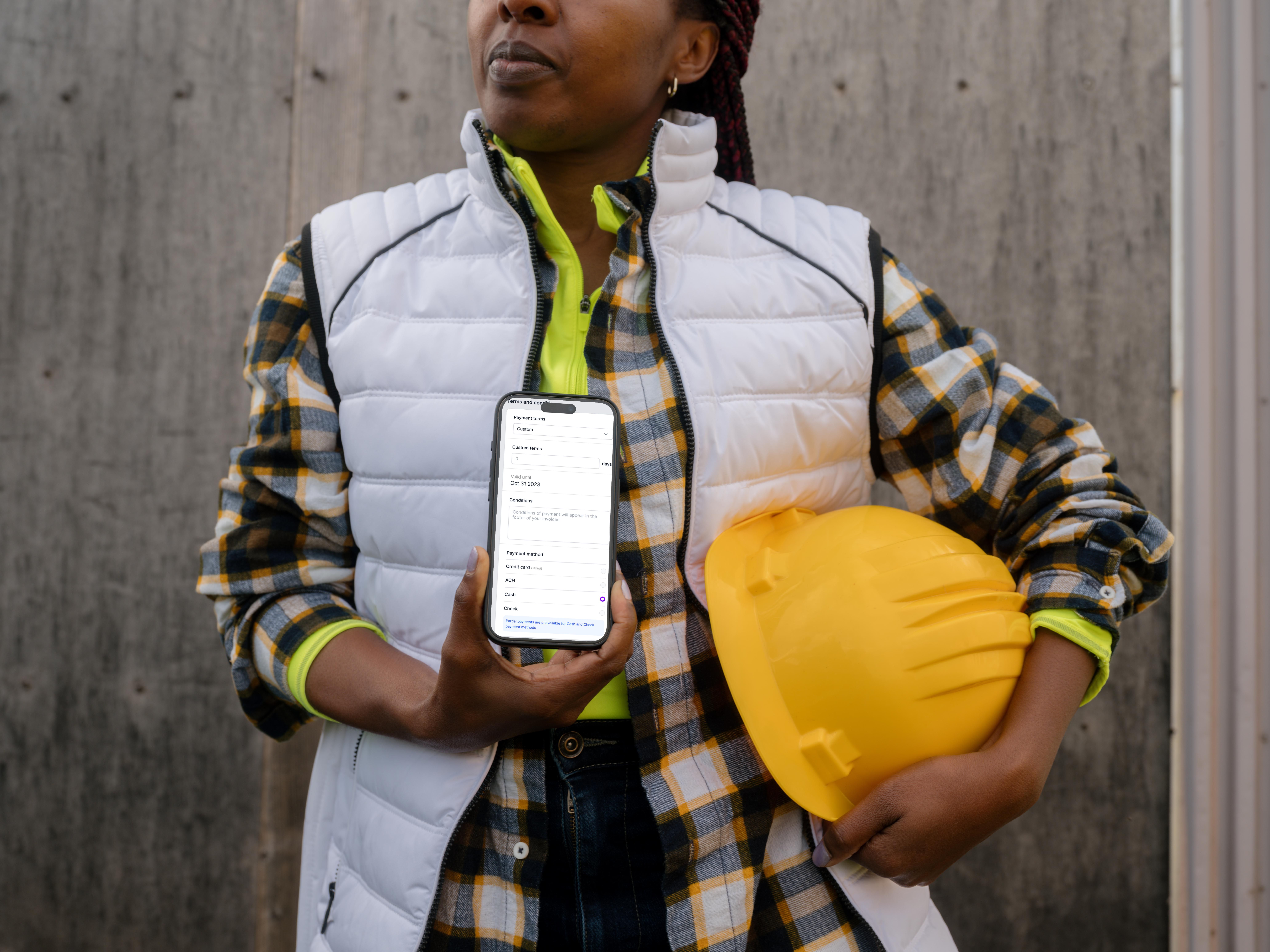
Invoicing & Payment Enhancements:
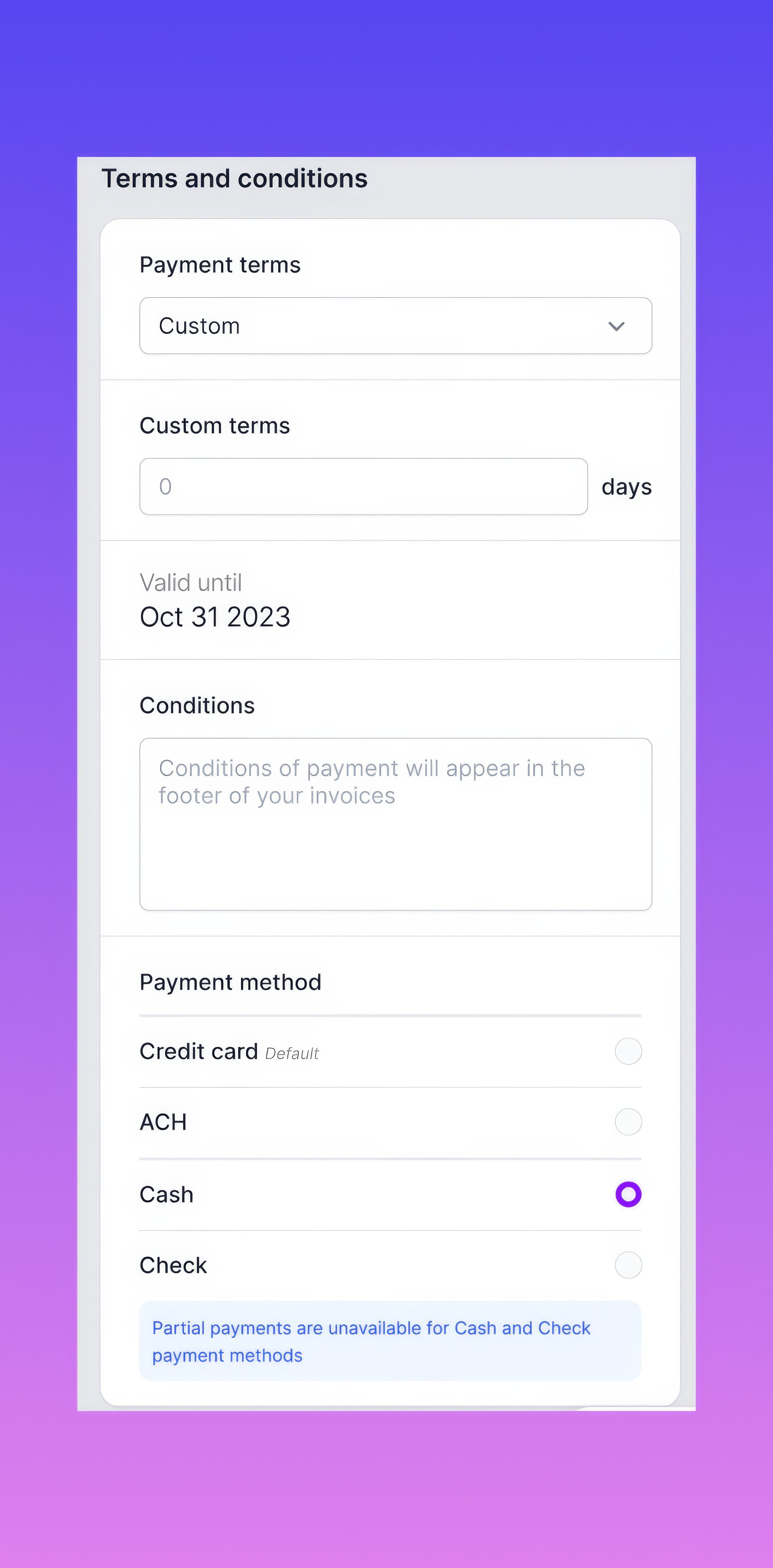
New Payment Methods: Cash & Check Support
Now, you can select Cash or Check as payment methods when creating invoices. This update helps you accurately process payments that happen offline!
Key Updates
- Check Payments
- Track check payments accurately.
- Log check numbers for accounting purposes.
- Mark invoices as "Paid" once checks are received and logged.
- Automatically send a receipt upon payment confirmation.
- Admins can download receipts from the invoice view.
- Cash Payments
- Track cash payments accurately.
- Mark invoices as "Paid" upon receiving cash.
- Automatically send a receipt upon payment confirmation.
- Admins can download receipts from the invoice view.
Steps To Use:
- Go to Invoices and select Create Invoice.
- Choose Cash or Check under Payment Method once your invoice is finalized.
- For check payments, enter the Check Number (optional).
- Once payment is received, mark the invoice as Paid.
- The system will automatically send a receipt to the customer.
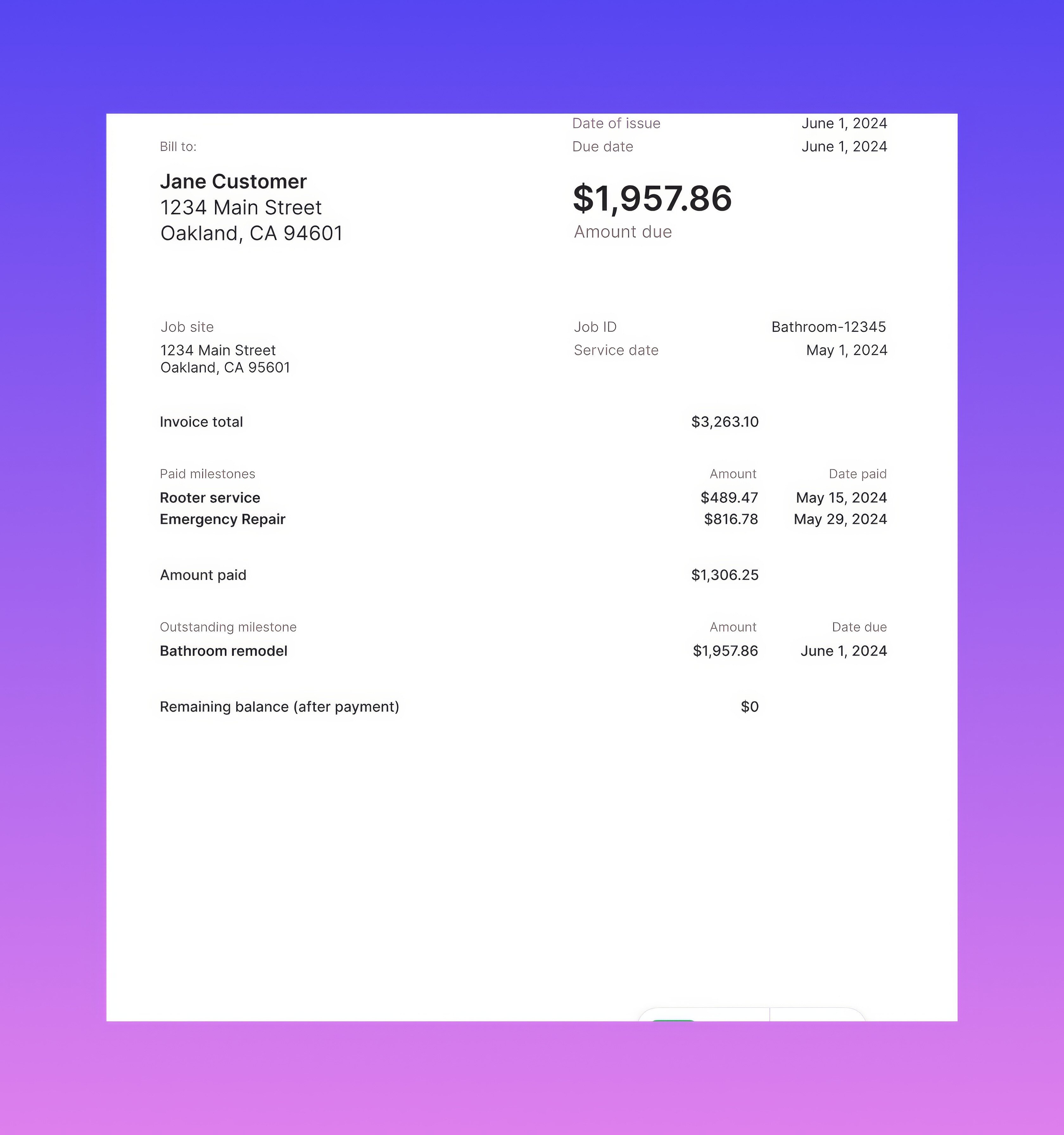
Progress Payments - Updated Invoice PDFs
When you create a progress payment enabled invoice, you and your customers will now see clearer invoice PDF breakdowns.
Key Updates:
- Previous Milestones Section: Displays past payments with details.
- Amount Paid Section: Summarizes total paid so far.
- Current Milestone Section: Shows the upcoming amount due with milestone details.
- Invoice Details: Includes job descriptions, photos, and terms & conditions.
This ensures customers receive invoices with accurate payment information at every stage.
Flat Rate Pricing Model for Invoices (Hide Line Item Prices)
You now have the option to create invoices that show only the total amount without displaying itemized details, ensuring compliance with flat-rate pricing models.
Key Updates:
- Global Toggle:
- You can hide item descriptions and/or unit prices with a single setting.
- By default, all details remain visible unless toggled off.
- Invoice Display Options:
- Hide line item descriptions while maintaining total visibility.
- Hide unit prices while keeping descriptions visible.
If both are hidden, only the total price appears.
- PDF & Customer View:
The customer-facing invoice will reflect these settings while full details remain available internally.
Improved Email Subject Lines for Estimates, Invoices, and Receipts
We’ve updated the subject lines of system-generated emails to include estimate, invoice, and receipt numbers. This makes it easier to track and reference communications.
Key Update:
- New Email Subject Lines:
-
Estimates: Estimate from [business name] valid until [valid until date] - [estimate number]
-
Invoices: Invoice from [business name] due [due date] - [invoice number]
-
Partial Payments: Invoice from [business name] due [due date] - [invoice number] - [Milestone Name]
-
Receipts: Payment Receipt from [business name] - [receipt date] #[receipt number]
In SERV, you will now see the corresponding estimate number, invoice number or receipt number when you open up the corresponding invoice, estimate or payment receipt. This update will make it easier to search for, and organize, items in your email inbox as well as have a reference point handy for your customers.
Partial Payment Confirmations - SMS to Customers & Admin Notifications
Customers and Admins will now receive instant notifications acknowledging partial payments.
1. Custom SMS Message:
"Thank you, [customer] [business name] has received your partial payment of [payment amount] for [job name]. Your receipt is attached for your records. If you have any questions, feel free to reach out."
2. Admin Notification
Admins will receive a push notification confirming a received partial payment.
Implemented Page Numbers for Invoices & Estimates
For improved performance and navigation, invoices and estimates are now organized with page numbers, allowing you to browse large lists more efficiently.
VOIP Numbers Now SMS-Capable
Previously, VOIP numbers (e.g., Google Voice) were categorized as voice-only, preventing text message delivery.
Key Updates
- VOIP numbers are now treated as SMS-capable.
- Customers can receive text messages with job details, images, and links.
- Ensures seamless communication with all clients.
Thank You!
We appreciate your feedback and are committed to making SERV the best CRM for home service businesses.
Enjoy the new updates!